Sonya R.
Content Manager
October 6, 2026
6 min
read


Google Sheets can work extremely well for a small rental portfolio, but the workbook needs to be designed as a data system rather than a decorative spreadsheet.
The easiest way to keep it manageable is to separate your data into tables and let formulas produce the reports.
Use one row per property, with a unique identifier for each record.
Property IDNameAddressUnitsP001Oak Street14 Oak St4P002River Road82 River Rd8
The Property ID connects each property to its units, leases, payments, expenses, and maintenance records.
Store current lease information separately from payment history.
Include the property ID, unit number, tenant, monthly rent, lease start date, lease end date, rent due day, and lease status.
This lets you compare contractual rent against actual collections without overwriting historical information.
Use one row per payment transaction.
Record the payment date, property ID, unit, tenant, rental period, amount received, and payment reference.
Keep partial payments as separate transactions so you can reconcile collections accurately.
Use one row per expense.
Include the date, property ID, expense category, vendor, description, amount, and invoice reference.
Consistent categories make it easier to identify where money is going and compare expenses across properties.
Use one row per maintenance request.
Include the property ID, unit, issue description, date reported, priority, status, assigned vendor, and completion date.
The dashboard can then summarize these five tables without requiring you to enter the same information repeatedly.
One of the easiest ways to damage a spreadsheet is inconsistent labeling.
These should not become different values:
Create dropdowns for categories and statuses using Google Sheets data validation.
Use the same approach for:
Consistent values make formulas more reliable and reduce errors when filtering or summarizing records.
Google Sheets supports conditional functions such as SUMIF, SUMIFS, and COUNTIFS.
For example, if the Expenses sheet contains Property ID in column B and Amount in column F, you can calculate total expenses for property P001 using:
=SUMIF(Expenses!B:B,"P001",Expenses!F:F)
To calculate repair expenses for P001, assuming the category is in column C:
=SUMIFS(Expenses!F:F,Expenses!B:B,"P001",Expenses!C:C,"Repairs")
To count open maintenance requests for P001, assuming Property ID is in column B and Status is in column D:
=COUNTIFS(Maintenance!B:B,"P001",Maintenance!D:D,"Open")
The exact columns will depend on how you build the workbook.
The principle is simple: store the underlying records once and calculate your reports from them.
Start with the questions a landlord actually asks.
Do not put 30 metrics on the first screen.
The purpose of the dashboard is to reduce the time required to understand the portfolio and identify what needs attention.
Make sure every metric has a clear definition. For example, collection rate should specify which rental periods and payments are included.
If several people use the workbook, protect:
Leave data-entry cells editable.
This prevents someone from accidentally replacing a formula with a hardcoded value such as $4,280 and silently breaking the report.
In Google Sheets, use protected ranges to restrict editing where appropriate. Remember that protection controls editing permissions; it does not replace a backup or version history.
Do not turn the workbook into a giant document repository.
A transaction can contain a reference such as:
Invoice reference: 2026-INV-184
The actual invoice can live in your document storage system.
This creates a link between the financial record and its supporting document while keeping the spreadsheet searchable and structured.
The issue is usually not the number of rows.
It is workflow.
If tenants send maintenance requests through different channels, rent payments arrive separately, lease dates are stored in another calendar, and several people need access, the spreadsheet becomes the place where everything has to be manually reconciled.
That is where property-management software can become more useful.
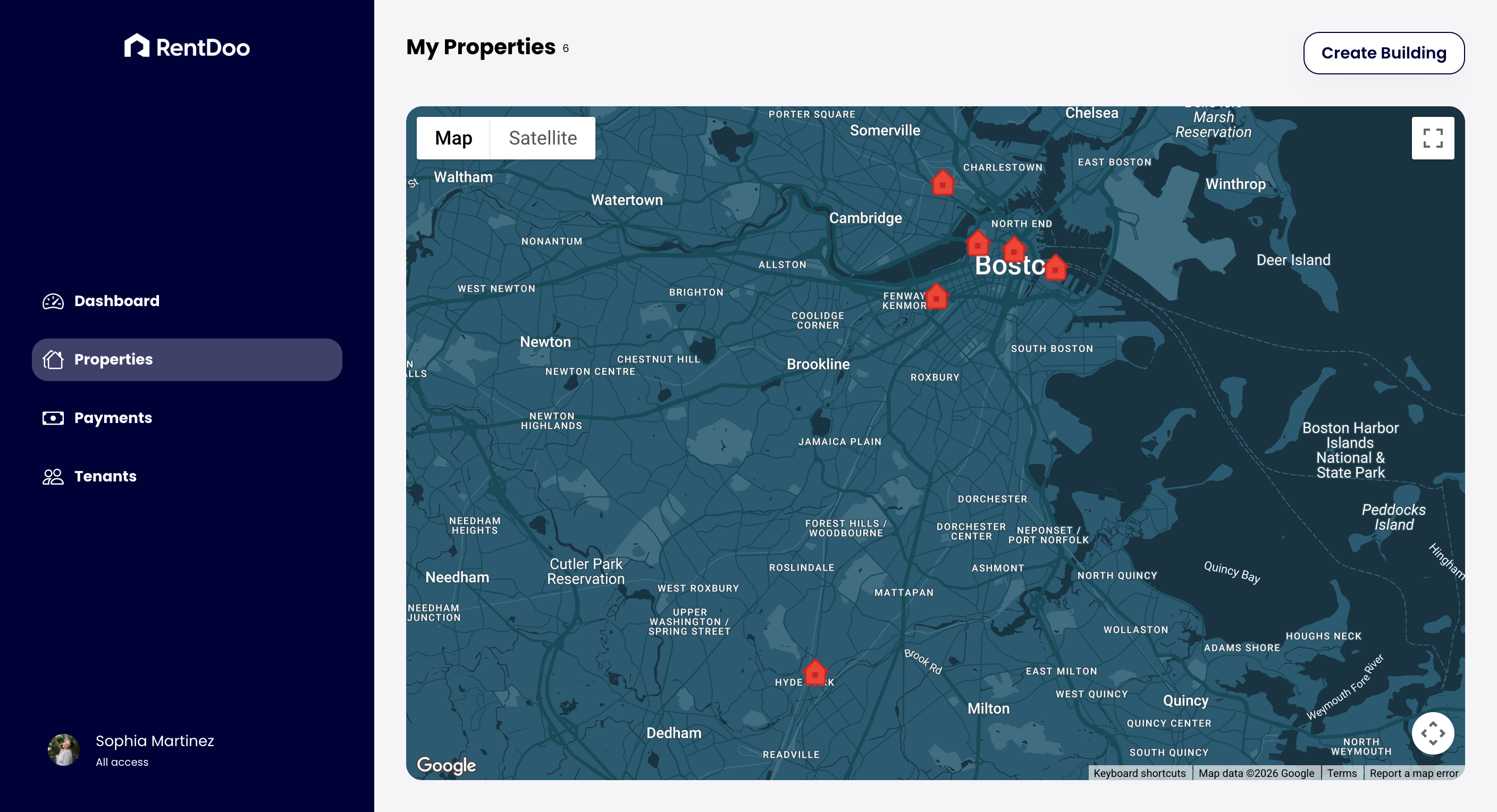
RentDoo is designed around that connected workflow: instead of treating property, tenant, and rent records as separate spreadsheets, landlords can manage this information from one system.
The goal is not to abandon Google Sheets because it is a bad tool. It is to recognize when manually coordinating disconnected records is taking more effort than the operation warrants.
Google Docs Editors Help — SUMIF
https://support.google.com/docs/answer/3093583
Google Docs Editors Help — COUNTIF
https://support.google.com/docs/answer/3093480
Google Docs Editors Help — FILTER